
Interior Design
Living Room Renovation
Plan a living room renovation from one photo. See new layouts, flooring, paint, and furniture rendered in under a minute before you spend a dollar on materials or a contractor.

— How to use
Three steps,
start to finish.
No CAD training, no mood-boarding rabbit holes. A photo in, a photoreal render out.
01
Photograph the living room wide
Shoot from the back corner with the sofa wall and window in frame. Include the full floor and ceiling. One wide, well-lit photo gives the AI enough to plan a full living room renovation.
02
Pick what you want to change
Flooring, paint, sofa, built-ins, lighting, or the whole layout. Name the biggest change first so the render leads with that. Everything else carries through in a consistent palette.
03
Generate, tweak, and save the plan
Flip between the original and the renovated render. Adjust palette, materials, or layout in plain language. Save the final version as the visual brief you bring to a contractor or use to shop.
— Pro tips
Better briefs,
better renders.
Six habits that consistently produce sharper, more believable, more useful output.
Tip · 01
Use high-quality photos
Upload sharp images shot at 1024px or larger. Well-lit, in-focus photos produce sharper, more realistic output.
Tip · 02
Lighting matters
Even, natural daylight reads best. Avoid harsh shadows or overly dark corners — the model infers material from light.
Tip · 03
Try multiple styles
Run the same room through two or three directions before locking one. You often discover a look you hadn't imagined.
Tip · 04
Clear the clutter
Minimal clutter lets the model understand room structure. Tidy visible surfaces before you shoot.
Tip · 05
Shoot multiple angles
Generate from the door, from the window, from the corner. The best angle is rarely the first one you try.
Tip · 06
Save and compare
Keep a project for each space. Compare variants side-by-side, share them with contractors, and refine from there.
— Features
Everything you
need, nothing you
don't.
Capabilities designed to move a single decision from guesswork to clarity.
Feature · 01
See a full living room renovation from one photo
Upload one photo and get back a renovated render with new flooring, paint, furniture, and layout. Broader than a pure restyle, and pairs with the home redesign AI when you want to extend the plan to other rooms.

Feature · 02
Try layout changes before you commit
Move the sofa wall, open up a doorway, or swap an accent wall for built-ins. The render updates without a trip to a contractor. Works alongside the room visualizer tool for lighter changes.

Feature · 03
Compare flooring and paint options fast
Generate three floor and paint combinations of the same living room and pick the one you want to live with. Same photo-to-render loop as the AI interior design workspace, scoped to renovation decisions.
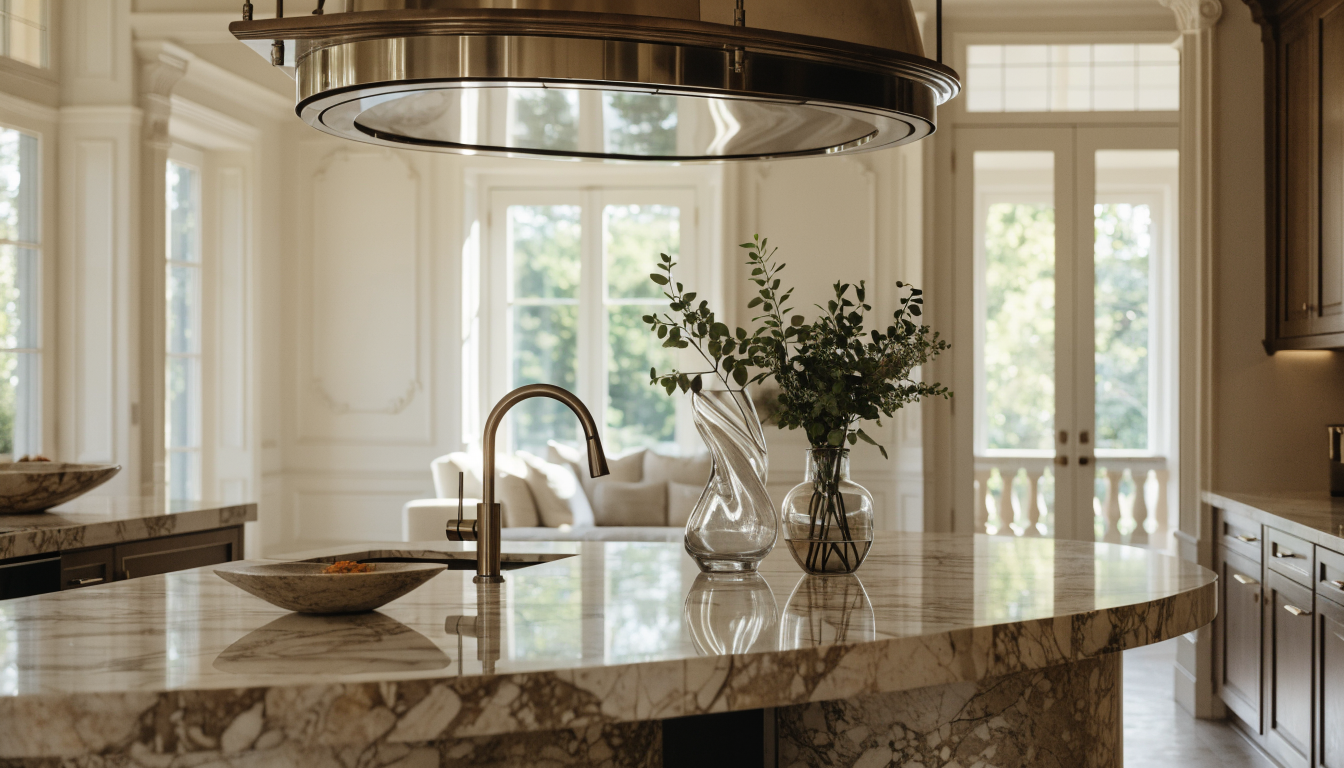
Feature · 04
Plan furniture without shopping blind
See how a new sectional, rug, and lighting read in your actual room before you buy. Pairs with the redecorate room tool when you are keeping the bones and only refreshing the furniture.

Feature · 05
Walk into a contractor meeting with a visual brief
The final render gives a contractor a clear target. Palette, materials, and layout all in one image. Works with the virtual staging tool if the renovation is happening to prep the home for sale.
— FAQ
Living Room Renovation AI,
answered.
Updated April 2026
Anything that changes the bones or the finishes. New flooring, new paint, new built-ins, moved walls, new lighting layouts, or a rework of the furniture footprint. A refresh swaps furniture only; a renovation changes the room itself.
Redecorating keeps the walls, floors, and layout and changes the furniture or palette on top. Renovation changes the surfaces and sometimes the footprint. This tool handles both, but leads with renovation-scale decisions first.
Yes. Ask for the sofa wall to move, a doorway to open up, or an accent wall to become built-ins. The render shows the change in place, so you can judge scale and sightlines before you ask a contractor to quote the work.
It renders materials at a category level. Oak herringbone floor, warm white paint, travertine fireplace, bouclé sectional. You take those categories to a retailer or contractor to source the exact material that fits your budget and timeline.
Yes, as a visual brief. The render communicates the look faster than a written scope. Pair it with measurements and a materials list so the contractor can price labor and supplies without guessing what you have in mind.
Under a minute per version. Most people generate three or four takes, compare them, and pick a direction within ten minutes. Layout changes or multi-room plans take a few more passes to land on the final render.
Yes. Tight rooms render well because the AI reads the scale from the photo. Ask for layouts that keep walking paths clear, and the render prioritizes sight lines so the small living room does not look cluttered in the final version.


Living Room Renovation AI
is a render away.
Start for free — no card, no commitment. See your space the way it could be, before you commit to the way it will be.
Try Living Room Renovation AI free →Available on the App Store — Android coming soon.
Free trial
See your space